














In the private home cinema era, HDMI has established itself as a universal interface, which at first glance gives the impression that audiovisual signal transmission is reduced to a simple plugging in of a cable. However, HDMI remains a complex high-speed protocol that only works flawlessly if all the components involved are technically correctly coordinated. The increasing requirements of 4K120, HDR10 , Dolby Vision, VRR, ALLM, eARC, 12-bit color depth and 8K formats mean that even the smallest deviations in signal quality have direct and visibly disruptive effects. A detailed look at the technical basics and typical user errors shows why many problems do not arise in the device itself, but in the configuration chain.
The basis of a clean HDMI connection is the correct selection of the physical connection on the display or AV receiver. Many devices still only have individual ports with full HDMI 2.1 bandwidth, while other connections are limited to HDMI 2.0. HDMI 2.0 offers 18 Gbit/s, sufficient for 4K at 60 Hertz, but limits higher frame rates and modern HDR formats. HDMI 2.1 increases the bandwidth to up to 48 Gbit/s and thus enables 4K120, 8K signals, VRR and extended sound mapping. If a high-performance player such as a PlayStation 5, Xbox Series X or a modern gaming PC is accidentally operated on an HDMI 2.0 port, the system automatically reduces the resolution, frame rate or HDR capability without the user recognizing the cause at first glance. Similarly, eARC is often only available on a port explicitly labeled as such, which has an extended audio return channel, while other connections only offer ARC or no return channel function at all.
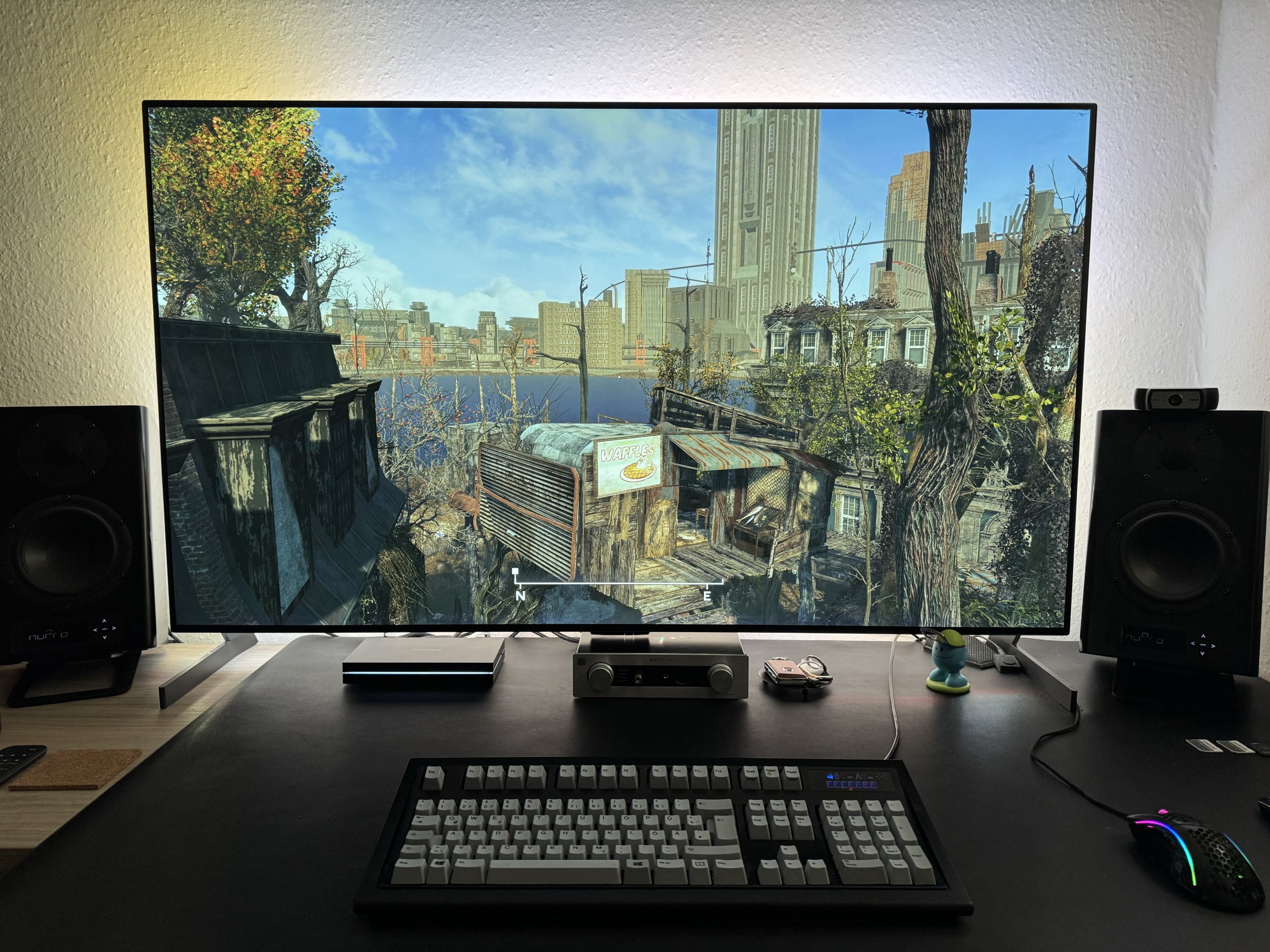
When everything hangs on the cable and drive a bug to white heat
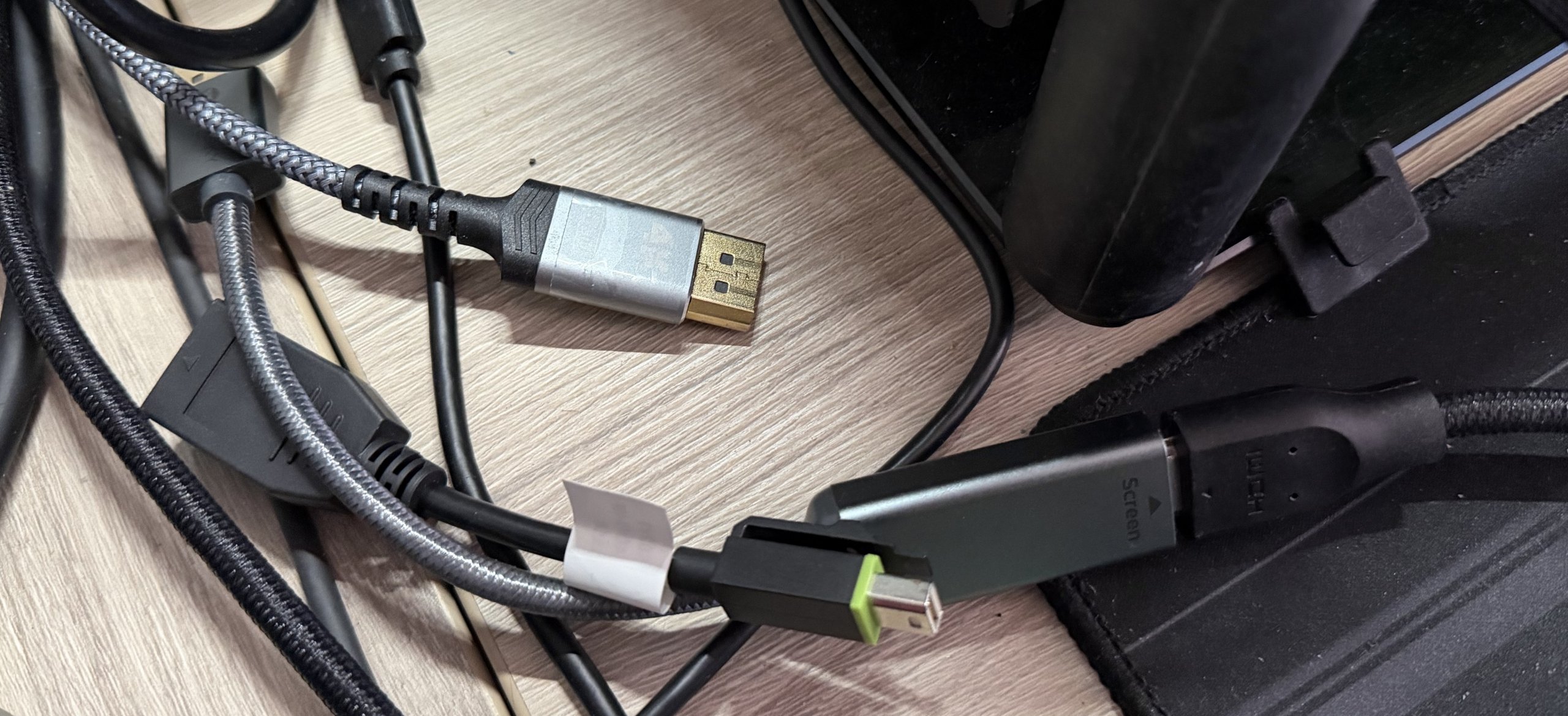
Choosing the right cable is just as important. HDMI works as a differential high-speed system with tight electrical tolerances. The transmission of sensitive signals requires a cable that provides both the necessary attenuation reserve and the correct shielding. Older cables do not meet these requirements and lead to signal instability at higher data rates. An Ultra High Speed HDMI cable, on the other hand, ensures a tested and certified bandwidth of 48 Gbit/s. Many users underestimate the importance of this certification and continue to use outdated cables from previous installations, which very often leads to sporadic picture dropouts, switching problems between HDR and SDR modes, compression artefacts or a reduction in the actual transmitted color depth. In addition, there are numerous cables that are falsely marketed as HDMI 2.1-capable without having the underlying electromagnetic performance.
The signal length is another decisive factor. The attenuation of the electrical signal increases with each additional meter, meaning that long cable runs quickly reach the limits of the permissible parameters. Transmission errors occur more frequently with cable lengths of five meters or more, especially with 4K120 or 8K signals. Users often try to solve such problems by reconnecting and disconnecting or by changing the devices, although the actual cause is insufficient cable length or signal quality. Active or optical HDMI cables are much more stable over longer distances, as they process the signal or transport it completely optically.
If the physical connection is established correctly, the internal configuration of the display has a significant impact on the picture quality. Modern televisions offer a variety of picture modes that not only control color settings, but also internal signal processors, intermediate image calculation, sound mapping and latency behavior. Gaming mode deactivates delay-causing image processing stages and ensures that high frame rates and VRR signals reach the panel unchanged. Filmmaker mode eliminates manipulative post-processing such as artificial sharpness or smoothing algorithms. Dynamic HDR modes such as Dolby Vision Cinema Home optimize the display in different ambient brightness levels. If you keep the preset standard mode, you will only get a generic, often over-processed image output that severely limits the potential of HDR sources and high-resolution signals.
One factor that should not be underestimated is the frequent errors in device compatibility. Many users do not actively trigger functions such as VRR or ALLM, as these have to be activated separately in some consoles or PC drivers. It also happens that users unnoticed set the HDMI input in the display to an incompatible color space or an incorrect color sampling format, which leads to color distortions or limited HDR dynamics. Some devices switch to YCbCr 4:2:0 in the background, although RGB or 4:2:2 would be possible. This often happens if the bandwidth is limited by an unsuitable cable or an incorrect port.
A particular source of errors is the use of intermediate stations such as AV receivers, soundbars or HDMI splitters. Older or not fully specification-compliant devices limit the maximum data rate, which leads to restrictions in the entire signal chain. Users often overlook the fact that the connection is not limited by the display or the console, but by an intermediate device that can neither accept nor pass on the higher formats. EARC also requires correct assignment of the ports and support of the relevant audio formats by all links in the chain.
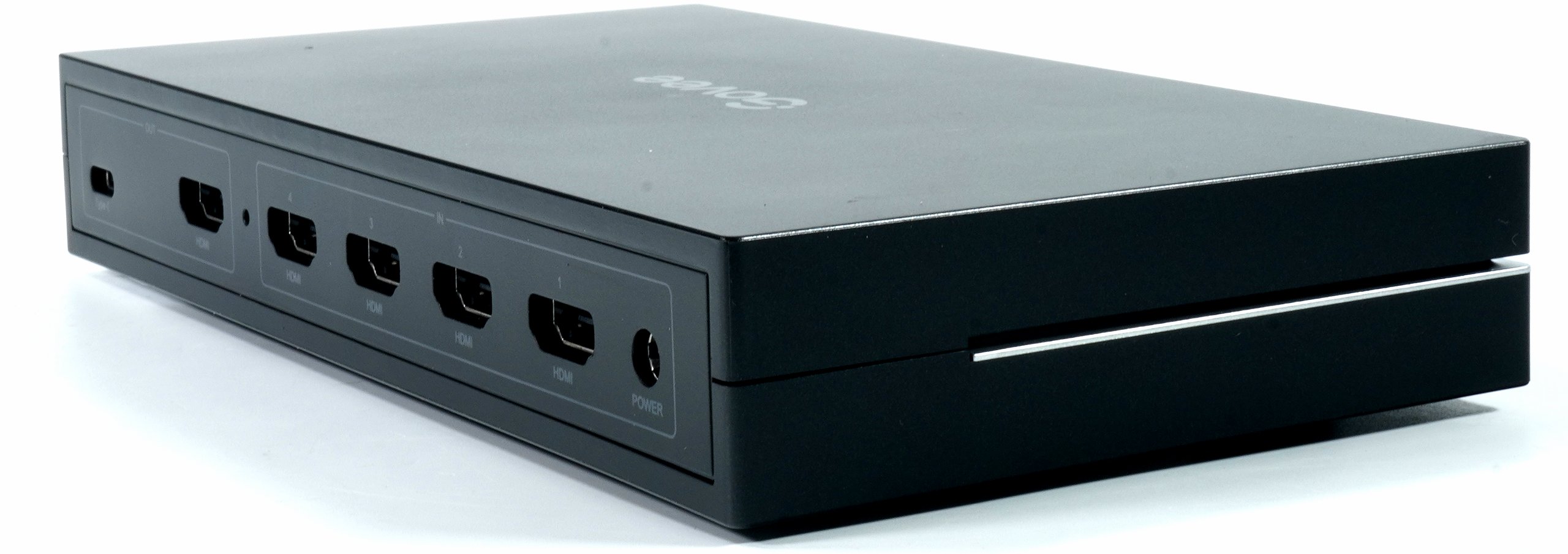 Do all devices really fit together?
Errors also occur with EDID handshakes, especially if devices are switched on in an unfavorable order or if the HDMI implementation of the display is unusually slow. Many users interpret such problems as defects, even though they are typical communication protocol malfunctions that can be rectified with cleaner cabling or a firmware update.
The sum of these factors leads to a scenario in which HDMI is a precise and powerful technology on the one hand, but on the other hand is susceptible to faults caused by unsuitable cabling, incorrect connections, overlong cable runs, mismatched picture modes or misunderstood additional functions. A technically correct system offers loss-free signal transmission and enables the full use of modern picture and sound formats. A neglected configuration, on the other hand, significantly reduces the performance of the entire home cinema system, even though the devices themselves are technically flawless.
The most common user errors include using the wrong HDMI input, using an outdated or excessively long cable, an inappropriate picture mode setting, incorrect intermediate connection of components, ignoring compatibility options in the source, incorrect activation or deactivation of HDR, incorrectly selected color display and misunderstanding eARC and ARC. These errors are usually caused by a lack of knowledge of the technical signal connections and not by actual defects in the devices. If you familiarize yourself with these basics, you will not only achieve an optimal audiovisual result, but also significantly higher operational reliability and compatibility in daily use. Below you will find a table of common user errors in the HDMI area:
| Error description | Technical cause | Typical effect |
|---|---|---|
| Use of an HDMI 2.0 port for HDMI 2.1 sources | The input supports a maximum of 18 Gbit/s | Reduction from 4K120 to 4K60, deactivated VRR, limited HDR |
| Use of non-certified or older HDMI cable | Lack of signal integrity at high data rates | Picture dropouts, color errors, missing HDR, aborts during handshake |
| Cable lengths too long without active signal amplification | Attenuation rises above the specified reserve | Instability at 4K120, flickering, loss of video signal |
| Connection via outdated AV receivers or soundbars | Limited pass-through capability | Deactivated HDMI 2.1 features, no 4K120 transmission |
| Incorrect picture mode on the TV | Activated image processing delays or changes the signal | Increased latency, artificial sharpness, distorted HDR playback |
| HDR options not activated in the player | Feeder sends SDR instead of HDR | Reduced dynamic range and limited color space |
| Unsuitable color sampling format or incorrect color space | Automatic bandwidth reduction by the system | Loss of RGB full range, switching to YCbCr 4:2:0 |
| Incorrect configuration of VRR or ALLM functions | Functions must be activated separately in source and display | No VRR, increased input delay |
| Use of damaged or crushed cables | Impairment of the line impedance | Sporadic dropouts or complete signal loss |
| Incorrect device sequence when switching on | EDID handshake is performed incompletely | Display of incorrect resolutions, missing HDR or incomplete color depth |
| Use of unsuitable HDMI splitters or switches | Insufficient support for modern standards | No 4K120, problems with VRR and HDR |
| Confusion between ARC and eARC | Different audio profile support | Loss of Dolby TrueHD, DTS-HD or Atmos via the return channel |
| Disabling of important automatic functions in the TV menu | Deactivated recognition of HDMI formats | Reduced bandwidth, no HDR or limited sound mapping |
| Use of PC graphics cards without correct driver settings | Incorrect output format or unsuitable frame rate | No 10- or 12-bit HDR, incorrect color display |
| Operation of HDMI via adapter solutions | Limited protocol support | No 4K120 transmission, no VRR, incomplete HDR |
Solution approaches and checklist
Troubleshooting begins with checking the physical connection on the display. It should first be determined whether the HDMI port used actually provides the required bandwidth, as many devices only have individual connections with HDMI 2.1 functionality. If the player sends more data than the port can process, the system automatically reduces the frame rate, resolution or HDR functionality. If a signal is not recognized correctly, you should therefore check whether an alternative input on the display meets the necessary specification and whether this input is enabled for extended signal modes in the TV menu.
The second step is to check the cable connection. The HDMI cable used should be completely replaced with a certified Ultra High Speed cable if there is any uncertainty about its performance. A look at potential kinks or crushing helps to detect mechanical damage that can lead to sporadic transmission errors. Shortening the cable length or using active or optical HDMI connections makes sense if the cable is longer than five meters or if 4K120, 8K or high colour depths are used.
The entire signal path between the player, optional intermediate components and display should then be considered. If an AV receiver or soundbar is connected in between, it must be checked whether these devices can pass on the desired formats. If this is not the case, a direct connection between the player and the display is recommended, while the audio path is realized via eARC. Check whether eARC is actually activated and whether the display is using the appropriate port. A firmware update for all devices involved can also be helpful, as display manufacturers regularly release corrections to HDMI implementations.
After checking the hardware, the next step is to check the internal device settings. The display’s picture mode must be selected sensibly in order to avoid unnecessary signal processing, which can lead to increased latency or distorted colors. Gaming mode or filmmaker mode are suitable options in many cases, while standard mode is often unsuitable. In addition, make sure that HDR is correctly activated in the display and that no restriction modes are active that reduce the color depth or transmission bandwidth.
The next step is to check the player. Consoles such as PlayStation 5 and Xbox Series X offer separate settings for resolution, frame rate, HDR, VRR and ALLM. If these functions are not recognized, the cause is often a faulty match between source and display. PC systems require an additional check in the graphics driver, as the color space, color depth and frame rate often have to be set manually. It is essential that HDR is activated in the operating system for Windows so that applications and games can send the corresponding signal at all.
If problems continue to occur, we recommend checking the EDID handshake. By switching the connection off and on again or by changing the switch-on sequence, it is often possible to determine whether there is a communication error between the devices. Restarting the entire chain in the order display, audio component and player often leads to a more stable recognition of the format. In rare cases, it may be necessary to completely reset the HDMI settings in the TV menu or remove obsolete devices from the HDMI device list.
Finally, a function check of the desired formats such as 4K120, HDR10, Dolby Vision, VRR or ALLM should be carried out. If individual functions are still not available, the cause is usually a limitation of one of the components, incompatible color sampling or insufficient bandwidth of the line. By gradually reducing the active functions, it is also possible to reliably determine the data rate at which the connection becomes unstable. This makes it easier to identify the bottleneck and enables targeted optimization of the entire signal path.
| Error pattern | Probable technical cause | Targeted diagnosis and action |
|---|---|---|
| Flickering picture or sporadic dropouts | Insufficient signal integrity due to cable age, cable length or incorrect shielding | Replace cable with certified Ultra High Speed HDMI, shorten cable, use active or optical cables |
| No HDR or only SDR available | Incorrectly set HDMI color mode, deactivated HDR in the player, port not compatible | Switch HDMI input in the TV to extended mode, activate HDR in the player, ensure use of an HDMI 2.1 port |
| 4K120 is not recognized | Cable or intermediate station limits the data rate, wrong port on the TV | Connect player directly to the display, switch to HDMI 2.1 port, swap cable |
| VRR does not work or causes picture errors | VRR not correctly activated in TV or player or implemented incompatibly | Activate VRR in both devices, update TV firmware, check G-Sync or Freesync compatibility |
| Sound via ARC is missing or breaks off | Use ARC instead of eARC, incompatible cable, incorrect audio output mode | use eARC port, activate eARC in the TV menu, switch to a high-quality cable |
| Atmos or DTS-HD are not transmitted | Limitation due to ARC, incompatible soundbar or incorrect EDID handshake | Operate player directly on the TV and use eARC, set audio format in the player to bitstream |
| No picture after switching on | EDID handshake failed, timing conflicts with start sequence | Switch on the display first, then the audio components and finally the player, reconnect the HDMI cable |
| Washed out colors or grey HDR look | YCbCr 4:2:0 forced by bandwidth limit, incorrect color space | Select RGB or YCbCr 4:2:2 manually, activate extended HDMI mode, ensure bandwidth with new cable |
| Delayed input during gaming | Intermediate image calculation or signal processing active | Activate game mode, deactivate motion smoothing and internal sharpness filters |
| Black picture when switching between SDR and HDR | Problems with dynamic EDID exchange, bandwidth bottleneck | Swap cables, recalibrate HDR format in the player, set HDMI signal format in the TV to extended |
| Picture appears too bright or washed out | Incorrect HDMI black point or color space conflict | Adjust player to limited or full RGB range, adjust TV setting |
| No 10-bit or 12-bit signal available | YUV 4:2:0 due to limitations or incorrect TV settings | Activate Deep Color in the TV, increase bandwidth, remove intermediate components |
| Sound delayed to the picture | Incompatible sound processing or incorrect lip synchronization | Adjust audio delay in TV or AV receiver, use eARC instead of ARC |
| Error messages such as “Unsupported format” | Feeder sends signal outside the TV specification | Adjust resolution and frame rate in the player, update TV firmware |
| Complete signal interruptions at high frame rates | Cable attenuation above the specification or faulty connectors | Use alternative cable routes, replace cables, check plugs for tight fit |
Summary and conclusion
HDMI is a double-edged sword. Used correctly, it delivers razor-sharp images and lossless sound. Used incorrectly, it degrades even the most expensive hardware to mediocre picture providers. And the worst thing about it? The fault almost always lies with the user themselves, not with the television, not with the cable, not with the console. It’s the unwillingness to deal with three simple variables: Connection, cable, mode. Those who master this not only have a better picture, but also the sublime view of a technically enlightened person.












30 Antworten
Kommentar
Lade neue Kommentare
Veteran
Urgestein
Veteran
1
Urgestein
Veteran
1
Urgestein
Urgestein
Veteran
Urgestein
Urgestein
Veteran
Mitglied
Veteran
Urgestein
Veteran
Urgestein
Urgestein
Alle Kommentare lesen unter igor´sLAB Community →